

Learning Flutter’s new Navigation and Routing system
This article explains how Flutter’s new Navigator and Router API works. If you follow Flutter’s open design docs, you might have seen…

Learning Flutter’s new navigation and routing system
Note: The sample code in this article is not null-safe and not compatible with Dart 3. For more information on the latest best-practices for navigation and routing in Flutter, go to the Navigation and routing page on docs.flutter.dev.
This article explains how Flutter’s new Navigator and Router API works. If you follow Flutter’s open
design docs, you might have seen these new features referred to as the
Router
widget. We’ll explore how these APIs enable more fine-tuned control over the screens in your app and how you can use it to parse routes.
These new APIs are not breaking changes, they simply add a new declarative API. Before Navigator 2.0, it was
difficult to push or pop multiple pages, or remove a page underneath the current one. However, if you are happy with how the
Navigator works today, you can keep using it in the same (imperative) way.
The Router provides the ability to handle routes from the underlying platform and display the appropriate pages. In this article, the
Router is configured to parse the browser URL to display the appropriate page.

This article helps you choose which Navigator pattern works best for your app, and explains how to use Navigator 2.0 to parse browser URLs and take full control over the stack of pages that are active. The exercise in this article shows how to build an app that handles incoming routes from the platform and manages the pages of your app. The following GIF shows the example app in action:
Navigator 1.0
If you’re using Flutter, you’re probably using the Navigator and are familiar with the following concepts:
-
Navigator— a widget that manages a stack of Route objects. -
Route— an object managed by aNavigatorthat represents a screen, typically implemented by classes likeMaterialPageRoute.
Before Navigator 2.0, Routes were pushed and popped onto the Navigator’s stack with either
named routes or anonymous routes. The next sections are a brief recap of these two approaches.
Anonymous routes
Most mobile apps display screens on top of each other, like a stack. In Flutter, this is easy to achieve by using the
Navigator.
MaterialApp and CupertinoApp already use a Navigator under the hood. You can access the navigator using
Navigator.of() or display a new screen using
Navigator.push(), and return to the previous screen with
Navigator.pop():
import 'package:flutter/material.dart';
void main() {
runApp(Nav2App());
}
class Nav2App extends StatelessWidget {
@override
Widget build(BuildContext context) {
return MaterialApp(
home: HomeScreen(),
);
}
}
class HomeScreen extends StatelessWidget {
@override
Widget build(BuildContext context) {
return Scaffold(
appBar: AppBar(),
body: Center(
child: FlatButton(
child: Text('View Details'),
onPressed: () {
Navigator.push(
context,
MaterialPageRoute(builder: (context) {
return DetailScreen();
}),
);
},
),
),
);
}
}
class DetailScreen extends StatelessWidget {
@override
Widget build(BuildContext context) {
return Scaffold(
appBar: AppBar(),
body: Center(
child: FlatButton(
child: Text('Pop!'),
onPressed: () {
Navigator.pop(context);
},
),
),
);
}
}
When push() is called, the DetailScreen widget is placed on top of the HomeScreen
widget like this:
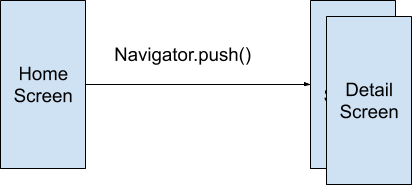
The previous screen (HomeScreen) is still part of the widget tree, so any State
object associated with it stays around while DetailScreen is visible.
Named routes
Flutter also supports named routes, which are defined in the routes parameter on MaterialApp
or CupertinoApp:
import 'package:flutter/material.dart';
void main() {
runApp(Nav2App());
}
class Nav2App extends StatelessWidget {
@override
Widget build(BuildContext context) {
return MaterialApp(
routes: {
'/': (context) => HomeScreen(),
'/details': (context) => DetailScreen(),
},
);
}
}
class HomeScreen extends StatelessWidget {
@override
Widget build(BuildContext context) {
return Scaffold(
appBar: AppBar(),
body: Center(
child: FlatButton(
child: Text('View Details'),
onPressed: () {
Navigator.pushNamed(
context,
'/details',
);
},
),
),
);
}
}
class DetailScreen extends StatelessWidget {
@override
Widget build(BuildContext context) {
return Scaffold(
appBar: AppBar(),
body: Center(
child: FlatButton(
child: Text('Pop!'),
onPressed: () {
Navigator.pop(context);
},
),
),
);
}
}
These routes must be predefined. Although you can pass arguments to a named route, you can’t parse arguments from the route itself. For example, if the app is run on the web, you can’t parse the ID from a route like
/details/:id.
Advanced named routes with onGenerateRoute
A more flexible way to handle named routes is by using onGenerateRoute. This API gives you the ability to handle all paths:
onGenerateRoute: (settings) {
// Handle '/'
if (settings.name == '/') {
return MaterialPageRoute(builder: (context) => HomeScreen());
}
// Handle '/details/:id'
var uri = Uri.parse(settings.name);
if (uri.pathSegments.length == 2 &&
uri.pathSegments.first == 'details') {
var id = uri.pathSegments[1];
return MaterialPageRoute(builder: (context) => DetailScreen(id: id));
}
return MaterialPageRoute(builder: (context) => UnknownScreen());
},
Here’s the complete example:
import 'package:flutter/material.dart';
void main() {
runApp(Nav2App());
}
class Nav2App extends StatelessWidget {
@override
Widget build(BuildContext context) {
return MaterialApp(
onGenerateRoute: (settings) {
// Handle '/'
if (settings.name == '/') {
return MaterialPageRoute(builder: (context) => HomeScreen());
}
// Handle '/details/:id'
var uri = Uri.parse(settings.name);
if (uri.pathSegments.length == 2 &&
uri.pathSegments.first == 'details') {
var id = uri.pathSegments[1];
return MaterialPageRoute(builder: (context) => DetailScreen(id: id));
}
return MaterialPageRoute(builder: (context) => UnknownScreen());
},
);
}
}
class HomeScreen extends StatelessWidget {
@override
Widget build(BuildContext context) {
return Scaffold(
appBar: AppBar(),
body: Center(
child: FlatButton(
child: Text('View Details'),
onPressed: () {
Navigator.pushNamed(
context,
'/details/1',
);
},
),
),
);
}
}
class DetailScreen extends StatelessWidget {
String id;
DetailScreen({
this.id,
});
@override
Widget build(BuildContext context) {
return Scaffold(
appBar: AppBar(),
body: Center(
child: Column(
mainAxisAlignment: MainAxisAlignment.center,
children: [
Text('Viewing details for item $id'),
FlatButton(
child: Text('Pop!'),
onPressed: () {
Navigator.pop(context);
},
),
],
),
),
);
}
}
class UnknownScreen extends StatelessWidget {
@override
Widget build(BuildContext context) {
return Scaffold(
appBar: AppBar(),
body: Center(
child: Text('404!'),
),
);
}
}
Here, settings is an instance of RouteSettings. The name and arguments fields are the values that were provided when
Navigator.pushNamed
was called, or what initialRoute
is set to.
Navigator 2.0
The Navigator 2.0 API adds new classes to the framework in order to make the app’s screens a function of the app state and to provide the ability to parse routes from the underlying platform (like web URLs). Here’s an overview of what’s new:
-
Page— an immutable object used to set the navigator’s history stack. -
Router— configures the list of pages to be displayed by the Navigator. Usually this list of pages changes based on the underlying platform, or on the state of the app changing. -
RouteInformationParser, which takes theRouteInformationfromRouteInformationProviderand parses it into a user-defined data type. -
RouterDelegate— defines app-specific behavior of how theRouterlearns about changes in app state and how it responds to them. Its job is to listen to theRouteInformationParserand the app state and build theNavigatorwith the current list ofPages. -
BackButtonDispatcher— reports back button presses to theRouter.
The following diagram shows how the RouterDelegate interacts with the Router,
RouteInformationParser, and the app’s state:
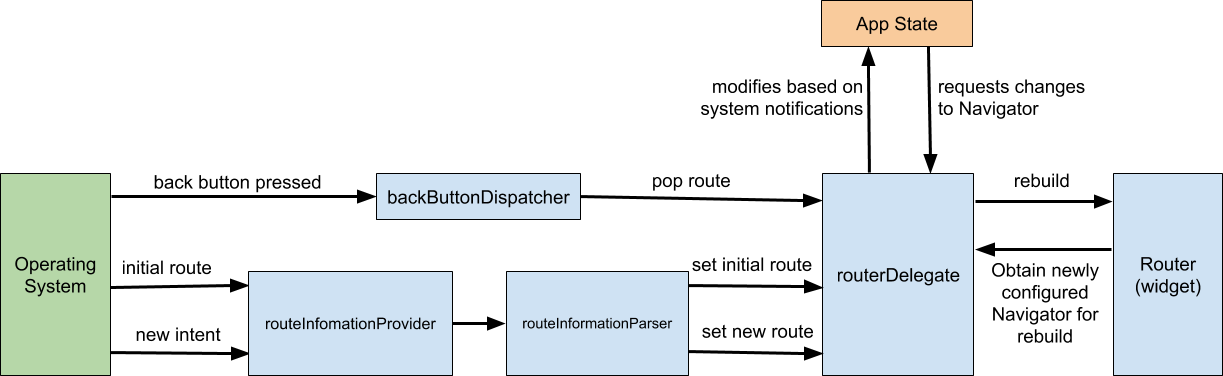
Here’s an example of how these pieces interact:
-
When the platform emits a new route (for example, “books/2”) , the
RouteInformationParserconverts it into an abstract data typeTthat you define in your app (for example, a class calledBooksRoutePath). -
RouterDelegate’ssetNewRoutePathmethod is called with this data type, and must update the application state to reflect the change (for example, by setting theselectedBookId) and callnotifyListeners. -
When
notifyListenersis called, it tells theRouterto rebuild theRouterDelegate(using itsbuild()method) -
RouterDelegate.build()returns a newNavigator, whose pages now reflect the change to the app state (for example, theselectedBookId).
Navigator 2.0 exercise
This section leads you through an exercise using the Navigator 2.0 API. We’ll end up with an app that can stay in sync with the URL bar, and handle back button presses from the app and the browser, as shown in the following GIF:

To follow along, switch to the master channel,
create a new Flutter project with web support, and replace the contents of
lib/main.dart with the following:
import 'package:flutter/material.dart';
void main() {
runApp(BooksApp());
}
class Book {
final String title;
final String author;
Book(this.title, this.author);
}
class BooksApp extends StatefulWidget {
@override
State<StatefulWidget> createState() => _BooksAppState();
}
class _BooksAppState extends State<BooksApp> {
void initState() {
super.initState();
}
@override
Widget build(BuildContext context) {
return MaterialApp(
title: 'Books App',
home: Navigator(
pages: [
MaterialPage(
key: ValueKey('BooksListPage'),
child: Scaffold(),
)
],
onPopPage: (route, result) => route.didPop(result),
),
);
}
}
Pages
The Navigator has a new pages argument in its constructor. If the list of Page
objects changes, Navigator updates the stack of routes to match. To see how this works, we’ll build an app that displays a list of books.
In _BooksAppState, keep two pieces of state: a list of books and the selected book:
class _BooksAppState extends State<BooksApp> {
// New:
Book _selectedBook;
bool show404 = false;
List<Book> books = [
Book('Left Hand of Darkness', 'Ursula K. Le Guin'),
Book('Too Like the Lightning', 'Ada Palmer'),
Book('Kindred', 'Octavia E. Butler'),
];
// ...
Then in _BooksAppState, return a Navigator with a list of Page
objects:
@override
  Widget build(BuildContext context) {
    return MaterialApp(
      title: 'Books App',
      home: Navigator(
        pages: [
          MaterialPage(
            key: ValueKey('BooksListPage'),
            child: BooksListScreen(
              books: books,
              onTapped: _handleBookTapped,
            ),
          ),
        ],
      ),
    );
  }
void _handleBookTapped(Book book) {
    setState(() {
      _selectedBook = book;
    });
  }
// ...
class BooksListScreen extends StatelessWidget {
  final List<Book> books;
  final ValueChanged<Book> onTapped;
BooksListScreen({
    @required this.books,
    @required this.onTapped,
  });
@override
  Widget build(BuildContext context) {
    return Scaffold(
      appBar: AppBar(),
      body: ListView(
        children: [
          for (var book in books)
            ListTile(
              title: Text(book.title),
              subtitle: Text(book.author),
              onTap: () => onTapped(book),
            )
        ],
      ),
    );
  }
}
Since this app has two screens, a list of books and a screen showing the details, add a second (detail) page if a book is selected (using
collection if):
pages: [
  MaterialPage(
    key: ValueKey('BooksListPage'),
    child: BooksListScreen(
      books: books,
      onTapped: _handleBookTapped,
    ),
  ),
// New:
  if (show404)
    MaterialPage(key: ValueKey('UnknownPage'), child: UnknownScreen())
  else if (_selectedBook != null)
    MaterialPage(
        key: ValueKey(_selectedBook),
        child: BookDetailsScreen(book: _selectedBook))
],
Note that the key for the page is defined by the value of the book object. This tells the
Navigator that this MaterialPage object is different from another when the
Book object is different. Without a unique key, the framework can’t determine when to show a transition animation between different
Pages.
Note: If you prefer, you can also extend Page to customize the behavior. For example, this page adds a custom transition animation:
class BookDetailsPage extends Page {
final Book book;
BookDetailsPage({
this.book,
}) : super(key: ValueKey(book));
Route createRoute(BuildContext context) {
return PageRouteBuilder(
settings: this,
pageBuilder: (context, animation, animation2) {
final tween = Tween(begin: Offset(0.0, 1.0), end: Offset.zero);
final curveTween = CurveTween(curve: Curves.easeInOut);
return SlideTransition(
position: animation.drive(curveTween).drive(tween),
child: BookDetailsScreen(
key: ValueKey(book),
book: book,
),
);
},
);
}
}
Finally, it’s an error to provide a pages
argument without also providing an onPopPage
callback. This function is called whenever Navigator.pop() is called. It should be used to update the state (that determines the list of pages), and it must call
didPop on the route to determine if the pop succeeded:
onPopPage: (route, result) {
if (!route.didPop(result)) {
return false;
}
// Update the list of pages by setting _selectedBook to null
setState(() {
_selectedBook = null;
});
return true;
},
It’s important to check whether didPop fails before updating the app state.
Using setState notifies the framework to call the build() method, which returns a list with a single page when
_selectedBook is null.
Here’s the full example:
import 'package:flutter/material.dart';
void main() {
runApp(BooksApp());
}
class Book {
final String title;
final String author;
Book(this.title, this.author);
}
class BooksApp extends StatefulWidget {
@override
State<StatefulWidget> createState() => _BooksAppState();
}
class _BooksAppState extends State<BooksApp> {
Book _selectedBook;
List<Book> books = [
Book('Left Hand of Darkness', 'Ursula K. Le Guin'),
Book('Too Like the Lightning', 'Ada Palmer'),
Book('Kindred', 'Octavia E. Butler'),
];
@override
Widget build(BuildContext context) {
return MaterialApp(
title: 'Books App',
home: Navigator(
pages: [
MaterialPage(
key: ValueKey('BooksListPage'),
child: BooksListScreen(
books: books,
onTapped: _handleBookTapped,
),
),
if (_selectedBook != null) BookDetailsPage(book: _selectedBook)
],
onPopPage: (route, result) {
if (!route.didPop(result)) {
return false;
}
// Update the list of pages by setting _selectedBook to null
setState(() {
_selectedBook = null;
});
return true;
},
),
);
}
void _handleBookTapped(Book book) {
setState(() {
_selectedBook = book;
});
}
}
class BookDetailsPage extends Page {
final Book book;
BookDetailsPage({
this.book,
}) : super(key: ValueKey(book));
Route createRoute(BuildContext context) {
return MaterialPageRoute(
settings: this,
builder: (BuildContext context) {
return BookDetailsScreen(book: book);
},
);
}
}
class BooksListScreen extends StatelessWidget {
final List<Book> books;
final ValueChanged<Book> onTapped;
BooksListScreen({
@required this.books,
@required this.onTapped,
});
@override
Widget build(BuildContext context) {
return Scaffold(
appBar: AppBar(),
body: ListView(
children: [
for (var book in books)
ListTile(
title: Text(book.title),
subtitle: Text(book.author),
onTap: () => onTapped(book),
)
],
),
);
}
}
class BookDetailsScreen extends StatelessWidget {
final Book book;
BookDetailsScreen({
@required this.book,
});
@override
Widget build(BuildContext context) {
return Scaffold(
appBar: AppBar(),
body: Padding(
padding: const EdgeInsets.all(8.0),
child: Column(
crossAxisAlignment: CrossAxisAlignment.start,
children: [
if (book != null) ...[
Text(book.title, style: Theme.of(context).textTheme.headline6),
Text(book.author, style: Theme.of(context).textTheme.subtitle1),
],
],
),
),
);
}
}
As it stands, this app only enables us to define the stack of pages in a declarative way. We aren’t able to handle the platform’s back button, and the browser’s URL doesn’t change as we navigate.
Router
So far, the app can show different pages, but it can’t handle routes from the underlying platform, for example if the user updates the URL in the browser.
This section shows how to implement the RouteInformationParser, RouterDelegate, and update the app state. Once set up, the app stays in sync with the browser’s URL.
Data types
The RouteInformationParser parses the route information into a user-defined data type, so we’ll define that first:
class BookRoutePath {
final int id;
final bool isUnknown;
BookRoutePath.home()
: id = null,
isUnknown = false;
BookRoutePath.details(this.id) : isUnknown = false;
BookRoutePath.unknown()
: id = null,
isUnknown = true;
bool get isHomePage => id == null;
bool get isDetailsPage => id != null;
}
In this app, all of the routes in the app can be represented using a single class. Instead, you might choose to use different classes that implement a superclass, or manage the route information in another way.
RouterDelegate
Next, add a class that extends RouterDelegate:
class BookRouterDelegate extends RouterDelegate<BookRoutePath>
with ChangeNotifier, PopNavigatorRouterDelegateMixin<BookRoutePath> {
@override
Widget build(BuildContext context) {
// TODO
throw UnimplementedError();
}
@override
// TODO
GlobalKey<NavigatorState> get navigatorKey => throw UnimplementedError();
@override
Future<void> setNewRoutePath(BookRoutePath configuration) {
// TODO
throw UnimplementedError();
}
}
The generic type defined on RouterDelegate is BookRoutePath, which contains all the state needed to decide which pages to show.
We’ll need to move some logic from _BooksAppState to BookRouterDelegate, and create a
GlobalKey. In this example, the app state is stored directly on the RouterDelegate, but could also be separated into another class.
class BookRouterDelegate extends RouterDelegate<BookRoutePath>
with ChangeNotifier, PopNavigatorRouterDelegateMixin<BookRoutePath> {
final GlobalKey<NavigatorState> navigatorKey;
Book _selectedBook;
bool show404 = false;
List<Book> books = [
Book('Left Hand of Darkness', 'Ursula K. Le Guin'),
Book('Too Like the Lightning', 'Ada Palmer'),
Book('Kindred', 'Octavia E. Butler'),
];
BookRouterDelegate() : navigatorKey = GlobalKey<NavigatorState>();
// ...
In order to show the correct path in the URL, we need to return a BookRoutePath based on the current state of the app:
BookRoutePath get currentConfiguration {
if (show404) {
return BookRoutePath.unknown();
}
return _selectedBook == null
? BookRoutePath.home()
: BookRoutePath.details(books.indexOf(_selectedBook));
}
Next, the build method in a RouterDelegate needs to return a Navigator:
@override
Widget build(BuildContext context) {
return Navigator(
key: navigatorKey,
pages: [
MaterialPage(
key: ValueKey('BooksListPage'),
child: BooksListScreen(
books: books,
onTapped: _handleBookTapped,
),
),
if (show404)
MaterialPage(key: ValueKey('UnknownPage'), child: UnknownScreen())
else if (_selectedBook != null)
BookDetailsPage(book: _selectedBook)
],
onPopPage: (route, result) {
if (!route.didPop(result)) {
return false;
}
// Update the list of pages by setting _selectedBook to null
_selectedBook = null;
show404 = false;
notifyListeners();
return true;
},
);
}
The onPopPage callback now uses notifyListeners instead of setState, since this class is now a
ChangeNotifier, not a widget. When the RouterDelegate notifies its listeners, the
Router widget is likewise notified that the RouterDelegate's currentConfiguration
has changed and that its build method needs to be called again to build a new Navigator.
The _handleBookTapped method also needs to use notifyListeners instead of setState:
  void _handleBookTapped(Book book) {
    _selectedBook = book;
    notifyListeners();
  }
When a new route has been pushed to the application, Router calls setNewRoutePath, which gives our app the opportunity to update the app state based on the changes to the route:
@override
Future<void> setNewRoutePath(BookRoutePath path) async {
if (path.isUnknown) {
_selectedBook = null;
show404 = true;
return;
}
if (path.isDetailsPage) {
if (path.id < 0 || path.id > books.length - 1) {
show404 = true;
return;
}
_selectedBook = books[path.id];
} else {
_selectedBook = null;
}
show404 = false;
}
RouteInformationParser
The RouteInformationParser provides a hook to parse incoming routes (RouteInformation) and convert it into a user defined type (BookRoutePath). Use the
Uri class to take care of the parsing:
class BookRouteInformationParser extends RouteInformationParser<BookRoutePath> {
@override
Future<BookRoutePath> parseRouteInformation(
RouteInformation routeInformation) async {
final uri = Uri.parse(routeInformation.location);
// Handle '/'
if (uri.pathSegments.length == 0) {
return BookRoutePath.home();
}
// Handle '/book/:id'
if (uri.pathSegments.length == 2) {
if (uri.pathSegments[0] != 'book') return BookRoutePath.unknown();
var remaining = uri.pathSegments[1];
var id = int.tryParse(remaining);
if (id == null) return BookRoutePath.unknown();
return BookRoutePath.details(id);
}
// Handle unknown routes
return BookRoutePath.unknown();
}
@override
RouteInformation restoreRouteInformation(BookRoutePath path) {
if (path.isUnknown) {
return RouteInformation(location: '/404');
}
if (path.isHomePage) {
return RouteInformation(location: '/');
}
if (path.isDetailsPage) {
return RouteInformation(location: '/book/${path.id}');
}
return null;
}
}
This implementation is specific to this app, not a general route parsing solution. More on that later.
To use these new classes, we use the new MaterialApp.router constructor and pass in our custom implementations:
    return MaterialApp.router(
      title: 'Books App',
      routerDelegate: _routerDelegate,
      routeInformationParser: _routeInformationParser,
    );
Here’s the complete example:
import 'package:flutter/material.dart';
void main() {
runApp(BooksApp());
}
class Book {
final String title;
final String author;
Book(this.title, this.author);
}
class BooksApp extends StatefulWidget {
@override
State<StatefulWidget> createState() => _BooksAppState();
}
class _BooksAppState extends State<BooksApp> {
BookRouterDelegate _routerDelegate = BookRouterDelegate();
BookRouteInformationParser _routeInformationParser =
BookRouteInformationParser();
@override
Widget build(BuildContext context) {
return MaterialApp.router(
title: 'Books App',
routerDelegate: _routerDelegate,
routeInformationParser: _routeInformationParser,
);
}
}
class BookRouteInformationParser extends RouteInformationParser<BookRoutePath> {
@override
Future<BookRoutePath> parseRouteInformation(
RouteInformation routeInformation) async {
final uri = Uri.parse(routeInformation.location);
// Handle '/'
if (uri.pathSegments.length == 0) {
return BookRoutePath.home();
}
// Handle '/book/:id'
if (uri.pathSegments.length == 2) {
if (uri.pathSegments[0] != 'book') return BookRoutePath.unknown();
var remaining = uri.pathSegments[1];
var id = int.tryParse(remaining);
if (id == null) return BookRoutePath.unknown();
return BookRoutePath.details(id);
}
// Handle unknown routes
return BookRoutePath.unknown();
}
@override
RouteInformation restoreRouteInformation(BookRoutePath path) {
if (path.isUnknown) {
return RouteInformation(location: '/404');
}
if (path.isHomePage) {
return RouteInformation(location: '/');
}
if (path.isDetailsPage) {
return RouteInformation(location: '/book/${path.id}');
}
return null;
}
}
class BookRouterDelegate extends RouterDelegate<BookRoutePath>
with ChangeNotifier, PopNavigatorRouterDelegateMixin<BookRoutePath> {
final GlobalKey<NavigatorState> navigatorKey;
Book _selectedBook;
bool show404 = false;
List<Book> books = [
Book('Left Hand of Darkness', 'Ursula K. Le Guin'),
Book('Too Like the Lightning', 'Ada Palmer'),
Book('Kindred', 'Octavia E. Butler'),
];
BookRouterDelegate() : navigatorKey = GlobalKey<NavigatorState>();
BookRoutePath get currentConfiguration {
if (show404) {
return BookRoutePath.unknown();
}
return _selectedBook == null
? BookRoutePath.home()
: BookRoutePath.details(books.indexOf(_selectedBook));
}
@override
Widget build(BuildContext context) {
return Navigator(
key: navigatorKey,
pages: [
MaterialPage(
key: ValueKey('BooksListPage'),
child: BooksListScreen(
books: books,
onTapped: _handleBookTapped,
),
),
if (show404)
MaterialPage(key: ValueKey('UnknownPage'), child: UnknownScreen())
else if (_selectedBook != null)
BookDetailsPage(book: _selectedBook)
],
onPopPage: (route, result) {
if (!route.didPop(result)) {
return false;
}
// Update the list of pages by setting _selectedBook to null
_selectedBook = null;
show404 = false;
notifyListeners();
return true;
},
);
}
@override
Future<void> setNewRoutePath(BookRoutePath path) async {
if (path.isUnknown) {
_selectedBook = null;
show404 = true;
return;
}
if (path.isDetailsPage) {
if (path.id < 0 || path.id > books.length - 1) {
show404 = true;
return;
}
_selectedBook = books[path.id];
} else {
_selectedBook = null;
}
show404 = false;
}
void _handleBookTapped(Book book) {
_selectedBook = book;
notifyListeners();
}
}
class BookDetailsPage extends Page {
final Book book;
BookDetailsPage({
this.book,
}) : super(key: ValueKey(book));
Route createRoute(BuildContext context) {
return MaterialPageRoute(
settings: this,
builder: (BuildContext context) {
return BookDetailsScreen(book: book);
},
);
}
}
class BookRoutePath {
final int id;
final bool isUnknown;
BookRoutePath.home()
: id = null,
isUnknown = false;
BookRoutePath.details(this.id) : isUnknown = false;
BookRoutePath.unknown()
: id = null,
isUnknown = true;
bool get isHomePage => id == null;
bool get isDetailsPage => id != null;
}
class BooksListScreen extends StatelessWidget {
final List<Book> books;
final ValueChanged<Book> onTapped;
BooksListScreen({
@required this.books,
@required this.onTapped,
});
@override
Widget build(BuildContext context) {
return Scaffold(
appBar: AppBar(),
body: ListView(
children: [
for (var book in books)
ListTile(
title: Text(book.title),
subtitle: Text(book.author),
onTap: () => onTapped(book),
)
],
),
);
}
}
class BookDetailsScreen extends StatelessWidget {
final Book book;
BookDetailsScreen({
@required this.book,
});
@override
Widget build(BuildContext context) {
return Scaffold(
appBar: AppBar(),
body: Padding(
padding: const EdgeInsets.all(8.0),
child: Column(
crossAxisAlignment: CrossAxisAlignment.start,
children: [
if (book != null) ...[
Text(book.title, style: Theme.of(context).textTheme.headline6),
Text(book.author, style: Theme.of(context).textTheme.subtitle1),
],
],
),
),
);
}
}
class UnknownScreen extends StatelessWidget {
@override
Widget build(BuildContext context) {
return Scaffold(
appBar: AppBar(),
body: Center(
child: Text('404!'),
),
);
}
}
Running this sample in Chrome now shows the routes as they are being navigated, and navigates to the correct page when the URL is manually edited.
TransitionDelegate
You can provide a custom implementation of TransitionDelegate that customizes how routes appear on (or are removed from) the screen when the list of pages changes. If you need to customize this, read on, but if you are happy with the default behavior you can skip this section.
Provide a custom TransitionDelegate to a Navigator that defines the desired behavior:
// New:
TransitionDelegate transitionDelegate = NoAnimationTransitionDelegate();
child: Navigator(
key: navigatorKey,
// New:
transitionDelegate: transitionDelegate,
For example, the following implementation disables all transition animations:
class NoAnimationTransitionDelegate extends TransitionDelegate<void> {
@override
Iterable<RouteTransitionRecord> resolve({
List<RouteTransitionRecord> newPageRouteHistory,
Map<RouteTransitionRecord, RouteTransitionRecord>
locationToExitingPageRoute,
Map<RouteTransitionRecord, List<RouteTransitionRecord>>
pageRouteToPagelessRoutes,
}) {
final results = <RouteTransitionRecord>[];
for (final pageRoute in newPageRouteHistory) {
if (pageRoute.isWaitingForEnteringDecision) {
pageRoute.markForAdd();
}
results.add(pageRoute);
}
for (final exitingPageRoute in locationToExitingPageRoute.values) {
if (exitingPageRoute.isWaitingForExitingDecision) {
exitingPageRoute.markForRemove();
final pagelessRoutes = pageRouteToPagelessRoutes[exitingPageRoute];
if (pagelessRoutes != null) {
for (final pagelessRoute in pagelessRoutes) {
pagelessRoute.markForRemove();
}
}
}
results.add(exitingPageRoute);
}
return results;
}
}
This custom implementation overrides resolve(), which is in charge of marking the various routes as either pushed, popped, added, completed, or removed:
markForPush— displays the route with an animated transitionmarkForAdd— displays the route without an animated transition-
markForPop— removes the route with an animated transition and completes it with a result. “Completing” in this context means that theresultobject is passed to theonPopPagecallback onAppRouterDelegate. -
markForComplete— removes the route without a transition and completes it with aresult -
markForRemove— removes the route with no animated transition and without completing.
This class only affects the declarative API, which is why the back button still displays a transition animation.
How this example works: This example looks at both the new routes and the routes that are exiting the screen. It goes through all of the objects in
newPageRouteHistory and marks them to be added without a transition animation using markForAdd. Next, it loops through values of the
locationToExitingPageRoute map. If it finds a route marked as isWaitingForExitingDecision, then it calls
markForRemove to indicate that the route should be removed without a transition and without completing.
Nested routers
This larger demo shows how to add a Router within another Router. Many apps require routes for the destinations in a
BottomAppBar, and routes for a stack of views above it, which requires two Navigators. To do this, the app uses an application state object to store app-specific navigation state (the selected menu index and the selected
Book object). This example also shows how to configure which Router handles the back button.
What’s next
This article explored how to use these APIs for a specific app, but could also be used to build a higher-level API package. We hope that you’ll join us in exploring what a higher-level API built on top of these features can do for users.
More from Flutter
Best practices for optimizing Flutter web loading speed
As a Flutter developer working with the Google Flutter team and personally in my private time, I encounter and understand the concerns…

Learn Flutter for free with Flutter Apprentice!
A free book for learning Flutter, available for a time-limited period.
