The Power of the Flutter’s Transform and GestureDetector Widgets
When it first clicked for me that Flutter gives me full control of everything on the screen, right down to the last pixel, I immediately…

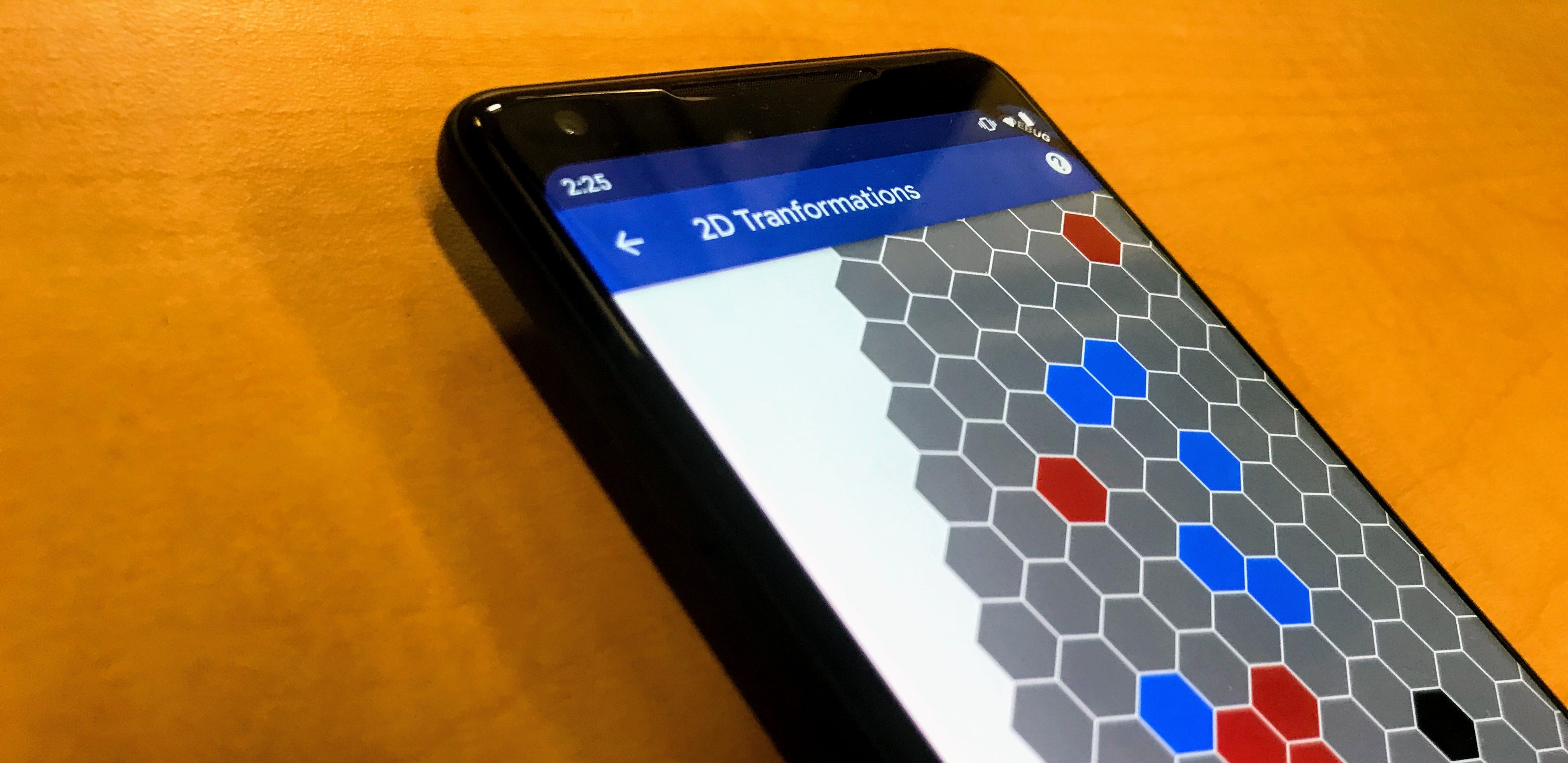
When it first clicked for me that Flutter gives me full control of everything on the screen, right down to the last pixel, I immediately wanted to go beyond the fixed and predictable world of most app UIs. The fully custom widgets that I could draw using CustomPaint begged to be broken out of the typical ScrollView or Container. I wanted to move around, zoom in on things, and navigate the world that Flutter makes it possible to create. The Transform widget was my vehicle for navigating this world, and GestureDetector provided the controls.

GestureDetector gives easy access to most gestures, and Transform provides the ability to modify the perspective in which a child widget is seen. Both are simple, independent widgets that follow Flutter’s pattern of composability. When we combine the two, every gesture on a widget becomes a way to explore.
An introduction to transformation

Despite its power, all that the Transform widget really does is to take a transformation matrix and apply it to its child. This results in the translation, scale, rotation, and even skew of the child with respect to the parent, all specified by one simple Matrix4 object.
Matrices are very convenient to work with when doing transformations because they are composable. Storing separate translation, scale, rotation, and skew parameters is intuitive at first, but it’s easy to run into ambiguity with things like order.
Imagine the user performs a series of gestures back to back. If the gestures are simply a series of drags, then we can easily store the final transformation as the resulting location Offset. However, if the user drags, then rotates at the new location, and repeats this several times, how do we keep track of the final state? An offset and a double of radians is not enough, not even if we include a focal point as well. We would have to keep track of an ever expanding list of operations that the user has performed and iterate the whole thing just to get to the final state.
A transformation matrix can be combined with any number of other transformation matrices indefinitely, and the result is always another single matrix of the same size. The GPU is very fast at doing this sort of math, even massively in parallel, such as for every pixel on the screen. This makes it great for storing the state of a widget like Transform, and the result is a very straightforward widget for Flutter developers to use.
Detecting gestures
If we tie some user gestures into updating the transformation matrix using a GestureDetector, then the user has the freedom to navigate the scene that we’re displaying to them. GestureDetector provides easy access to gestures like drag, which we can use for translation, pinch, for zooming, and even a two-finger rotation.


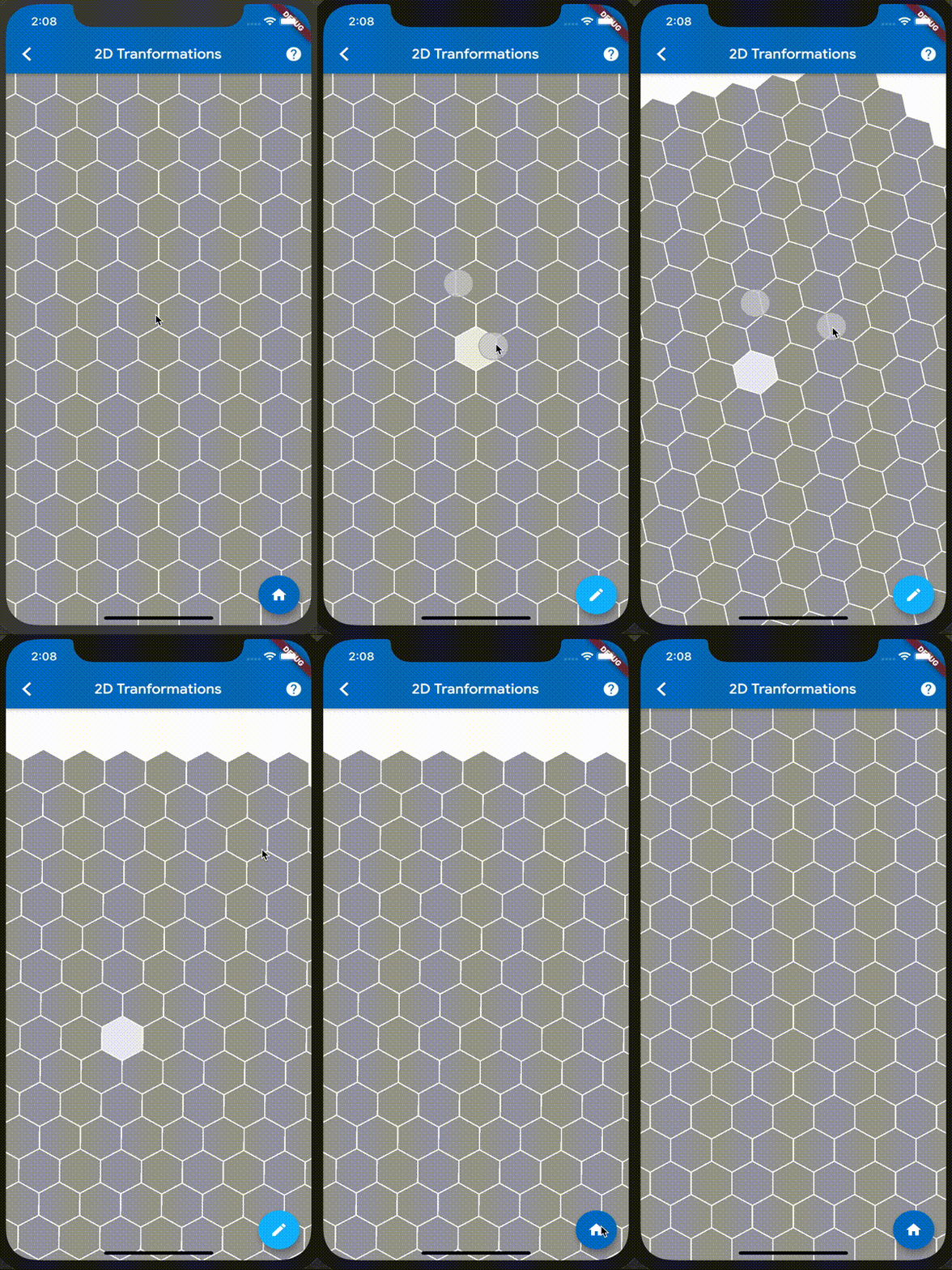
GestureDetector provides lots of different callbacks for various gestures and their start, update, and end states. However, if you’re implementing something like the pictured demo that combines several, the scale callbacks are all you’ll need. The onScaleUpdate callback provides a focalPoint, both horizontal and vertical scales, and rotation, all in one. This allows you to respond to multiple gestures at the same time, such as if the user is rotating and scaling in one gesture. See the ScaleUpdateDetails for everything provided in the onScaleUpdate callback.
Another thing that is often implemented in physical transformations like these is inertia. After the user finishes a gesture, they might expect the transformation to continue for awhile before slowly coming to a stop. Flutter provides a “velocity” parameter in the ending callbacks of all of these gestures, including scale. As you might guess with physics-based movement, this value is larger if the user is moving their finger quickly and smaller if the user is making a slow gesture.
You can create this inertia effect with another great piece of Flutter infrastructure, the Tween animation. Using the velocity and position at the end of a gesture, and a basic knowledge of physics, you can come up with a final position and duration to provide to the Tween, and let it handle everything else. Flutter even includes a friction simulation class to handle some of these calculations for you and make things feel very realistic.
Conclusion
Combining Transform and GestureDetector gives us an incredibly powerful tool. So much is possible, from moving around a game board, as shown in the screenshots, to navigating a map, to providing an interactive image viewer, and beyond.
The app shown here is currently available as a demo in the Flutter Gallery app. All of the code is a part of the main flutter open source repository, and can be found in the transformation demo source. Most of the transformation logic is in the GestureTransformable class, including the inertia animation.
More from Flutter
Flutter Q2 survey
Just a reminder! Please take the Flutter Q2 survey! The survey closes at the end of day on Friday, June 19th.

Announcing our new Dart and Flutter Getting Started experience
When I joined the Dash DevRel team, my manager gave me an onboarding doc which started like this: “Your new job in one sentence: Improve…